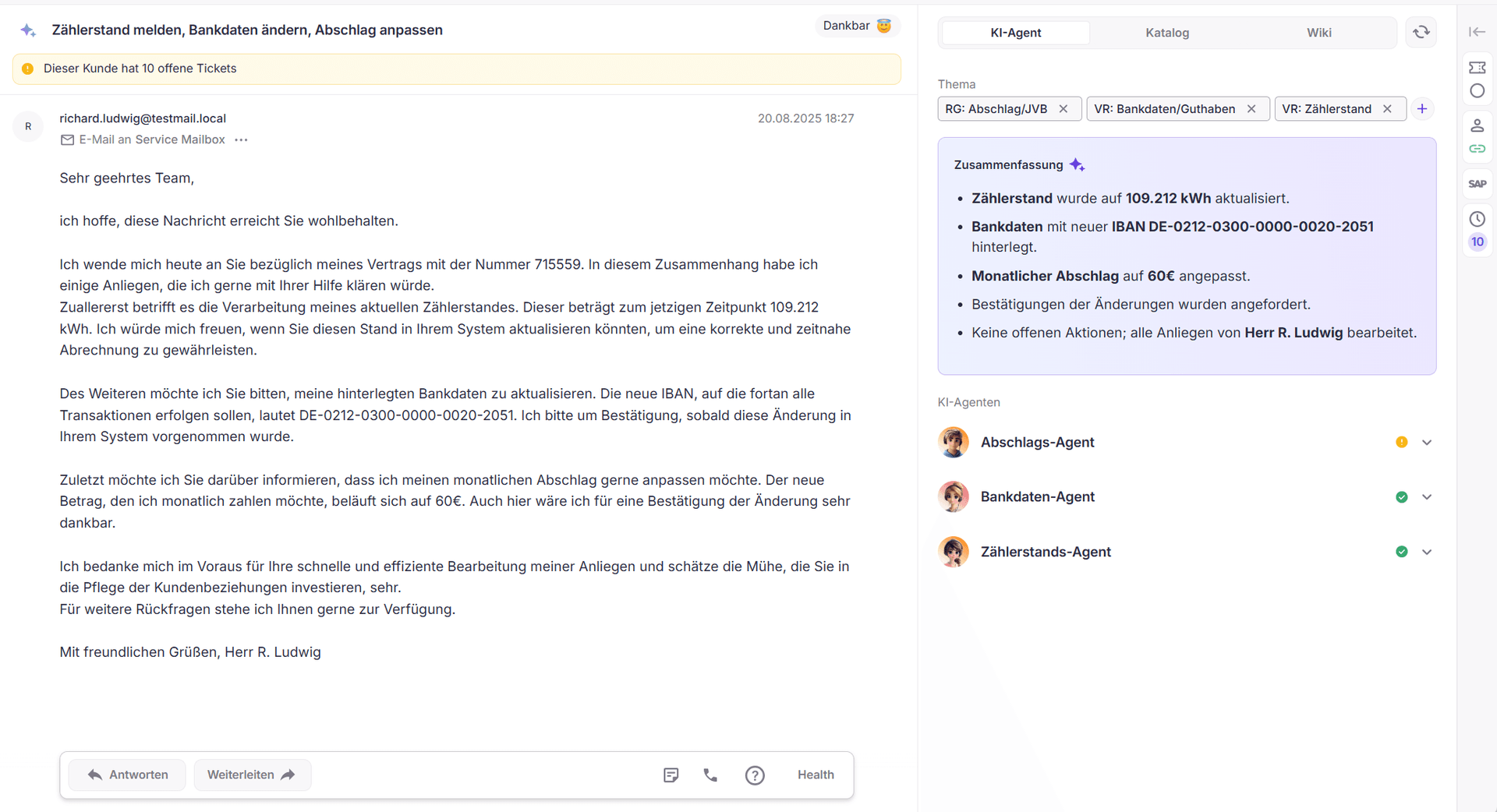
The left area displays the main customer concern and all information relevant for understanding the content of the ticket.
AI-supported Classification
Directly in the context of the concern, an automatically generated summary is displayed. In addition, the AI evaluates the customer's mood, visualized via an emoji, to enable quick assessment.
Hints in the Processing Context
Situation-dependent hints or system-side information are displayed as banners, for example in the case of special abnormalities or dependencies in the ticket.
Basic Ticket Info
Below the content, the most important metadata are neatly presented, including subject, sender, recipient, and send date.
Interaction with the Customer Concern
In the upper area, the classic processing functions are available, for example:
Reply
Forward
Record internal notes directly on the ticket
The middle area supports the active processing of the ticket, combining AI agents, templates, and knowledge sources.
Summary
The AI-generated summary includes the most important information of a ticket in a condensed form. It summarizes relevant ticket contents, suitable wiki articles, and other background information so that those processing the ticket quickly gain an understandable overview of the current facts without having to check all content individually.
AI Agent
Topic and tags define the technical classification of the ticket and influence its further distribution in the Autopilot.
If a concern can be processed by an AI Agent, it is displayed directly below the topics and can be applied immediately. If the suggested AI agents are considered unsuitable, they can be removed via "Concerne wrongly recognized?".
Not every concern is suitable for complete automation. In such cases, an AI-generated response suggestion is offered, which can be clicked into the response field and manually supplemented.
Catalog
The catalog, if configured, provides text templates (templates). Navigation is via the stored structure or the search field.
Tip
Often, searching for a suitable template takes longer than to formulate a short bullet point answer and let it be worked out by the AI text assistant.
Wiki
The wiki area provides direct access to instructions and background information. Navigation is either via the structure or the search field.
For specific questions, Neo automatically summarizes the relevant content from suitable articles. This saves time and provides a quick, clear answer without having to read individual articles.
The right area bundles context-related information about the ticket and the customer. The sidebar can be fully expanded or targeted via the icons.
Ticket Details
Here you can find all information about the current ticket, including:
Status and Due Date
The status describes the processing state of a ticket: "open", "waiting" or "closed", where "waiting" is always time-limited and tied to a due date.
The due date determines when a ticket should be processed, thus controlling the further processing flow.
When creating a ticket, the status is initially "open". The due date is automatically set based on the respective tag configuration.
Note
If the status of a ticket is manually set to "waiting", the specification of a due date is required.
After this date has expired, the status automatically reverts to "open" and the ticket is again offered for processing.
In this way, status and due date interlock and ensure that waiting tickets return to the processing process in a controlled manner.
Agent
If tickets are assigned to a specific agent, they are offered to this agent exclusively in autopilot.
An exception is extended absence.
Additional Details
ID, priority, and – optionally – the activity log
Customer Data
This section displays the most important master data from linked customers. The displayed information can be expanded individually, for instance:
Contract and customer number
Tariff, monthly installment, and consumption
Any credit or open amounts
Delivery address, email, and delivery status
History
The history lists all other customer tickets including status, receipt date, and topic.
Depending on the configuration, relevant system events are also displayed, such as tariff changes or price adjustments.
If no customer is linked to the ticket, all available tickets for the sender's address are listed.