
Work Resources
Partners
Application areas, creation and access in the ticket
Tip
The partner management is a simple CRM in Enneo and allows important information about business partners to be centrally stored and managed. New partners can be added, existing data edited, and directly used in tickets or emails.
Application areas
The partner management is ideal for communication with business partners who are regularly contacted but are not direct customers. These include, for example, market partners or sales partners. By providing quick access to all relevant information and email address directly from a ticket, workflows become significantly more efficient.
Creation
Partner management is reached via the "Partners" entry in the left sidebar. There, new partners can be created or existing ones edited, similar to a contact book. Clicking "New partner" opens the input form.
Note
The "Partners" entry only appears if partner management is activated for the instance and the user has permission to view partners.
The input form offers the following fields:
- First name and Last name: required for persons
- Business: marks the partner as a company. The Company name field then appears, and first and last name are no longer required.
- Email and Phone number
- Description: for internal notes about the partner
- Service ID: a freely usable identifier, for market partners for example the BDEW or DVGW code
- Link to a third party system: optionally a URL that opens the partner in an external system
- Country, ZIP, City and Address
Partner list
The partner list can be searched via the search field. The "Last usage" column shows when a partner was last used as a recipient.
"Delete partner" in the edit view removes a partner. Emails to this address are still possible, but the partner's details are no longer shown in enneo.
Access in the ticket
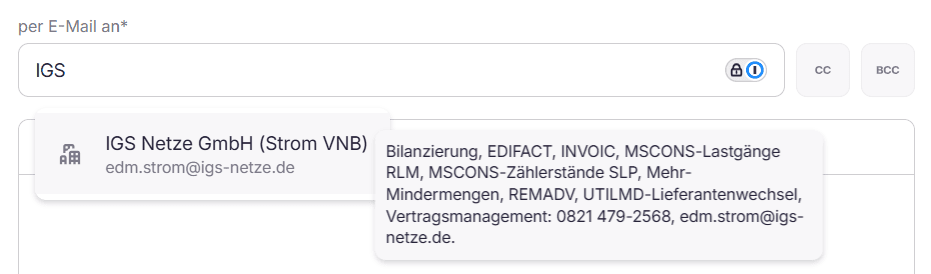
If a name or email address is entered in the recipient fields To, CC or BCC, matching suggestions from the partner management appear. The desired partner can be taken over directly. This works when replying in a ticket and when creating a new outgoing ticket.