Customer Surveys
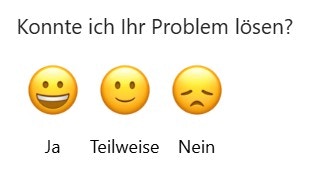
With the CSAT feature (Customer Satisfaction Score), it is possible to automate the collection of feedback on service quality. Enneo displays a survey directly in the footer of outgoing responses, enabling customers to evaluate whether their issue was satisfactorily resolved with just a few clicks.
- Systematic collection of customer feedback
- Determination of satisfaction after ticket closure
- Basis for team and quality development
Requirement
- User privilege “Manage customer and user satisfaction surveys” is required.
Setting up the CSAT survey
-
Access the survey area
User Administration → Surveys → Customer Surveys
-
Choose scale and presentation
”Customer satisfaction survey in footer” with the options:
- Good / Okay / Not Good (3-point scale)
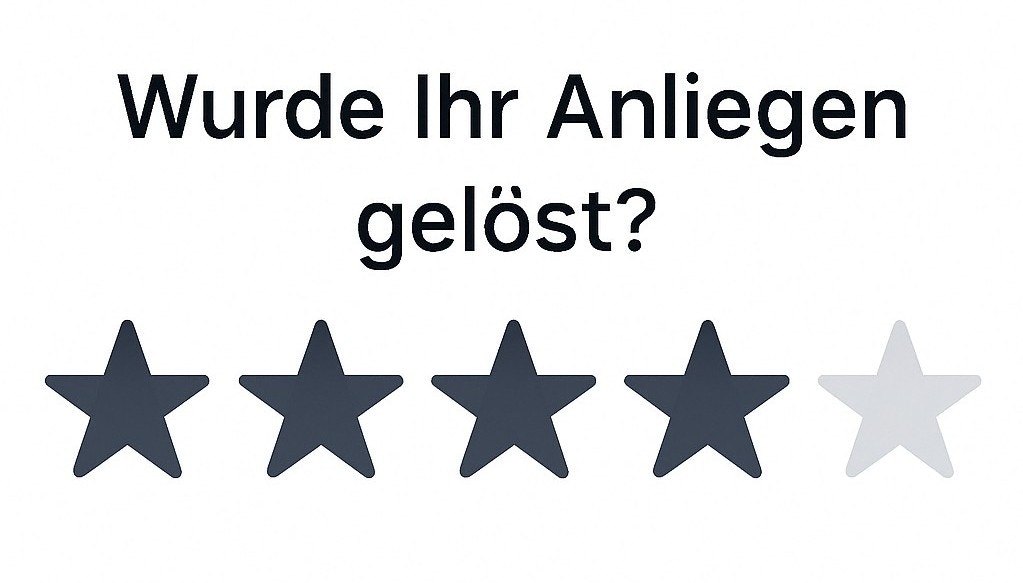
- Stars (5-point scale)
- NPS (10-point scale)
- Disabled (Default)
The chosen scale is applied globally across all activated email accounts.
-
HTML Template
After selecting the scale, the template editor will be displayed, where the layout of the survey can be implemented via html code.
Example of a 3-point scale:
<p style="font-size: 14px; margin: 20px 0 10px;">
Was I able to solve your problem?
</p>

<div style="display: flex; gap: 20px; align-items: center;">
    <a href="{surveyUrl|3}" target="_blank" style="text-decoration: none; text-align: center; color: #000;">
        <img src="https://main.enneo.dev/icons/emojiHappy.svg" style="width: 48px; height: 48px; display: block; margin: 0 auto;" />
        <div style="font-size: 12px; margin-top: 5px;">Yes</div>
    </a>
    <a href="{surveyUrl|2}" target="_blank" style="text-decoration: none; text-align: center; color: #000;">
        <img src="https://main.enneo.dev/icons/emojiNeutral.svg" style="width: 48px; height: 48px; display: block; margin: 0 auto;" />
        <div style="font-size: 12px; margin-top: 5px;">Partially</div>
    </a>
    <a href="{surveyUrl|1}" target="_blank" style="text-decoration: none; text-align: center; color: #000;">
        <img src="https://main.enneo.dev/icons/emojiDisappointed.svg" style="width: 48px; height: 48px; display: block; margin: 0 auto;" />
        <div style="font-size: 12px; margin-top: 5px;">No</div>
    </a>
</div>
-
Activation per email account
Even though the scale is set globally, it can be decided on a per-email-account basis whether the CSAT feature should be active:
- Open the Email Accounts menu item
- Edit the desired account
- In the “Customer Satisfaction Survey (CSAT)” section, activate the switch
-
Testing and Control
To check the configuration, an outgoing email can simply be created and sent to one’s own email address.
This allows for direct evaluation of whether the survey in the footer meets expectations, or if adjustments need to be made.
-
Data Retrieval
The survey results can be downloaded as a .xlsx file in the Advanced Settings → Export and Reporting Settings → "Customer Satisfaction Surveys" section.
Relevant data sets: Audience = customer
User Surveys
With the user survey, it can be internally recorded how helpful the AI agent’s suggested solutions were in the ticket context. The survey appears after sending a response and allows for quick feedback from ticket processors.
- Evaluation of the solution suggested by the AI agent
- Improvement of AI logic based on practice feedback
- Uncovering potential for extending existing AI agents or developing new use cases
Requirement
- User privilege “Manage customer and user satisfaction surveys” is required.
Setting up the user survey
-
Access the survey area
User Administration → Surveys → User Surveys
-
Activation
- In the dropdown “Survey after ticket closure”, select the option
”How satisfied were you with the AI? 1–5 stars.”
- By default, “No survey” is set
-
Operation
- The survey appears after closure of a ticket
- Visible only to users with ticket processing roles
- The survey includes a popup “How satisfied are you with the AI solution?”
- The rating scale encompasses 1 to 5 stars
-
Data Retrieval
The survey results can be downloaded as a .xlsx file in the Advanced Settings → Export and Reporting Settings → "Customer Satisfaction Surveys" section.
Relevant data sets: Audience = user