
Voice and Telephony
Setting Up a Call Flow
Define the path of a call with nodes in the call flow editor
The call flow defines what happens to a call on a line – from the first ring to the end: Is the caller greeted by a voicebot? Is the call passed to an agent or forwarded to another number? What does the caller hear outside business hours?
You build the flow from nodes in the call flow editor. You open the editor under Settings → Telephony by selecting a line and clicking “Configure call flow”.
The editor
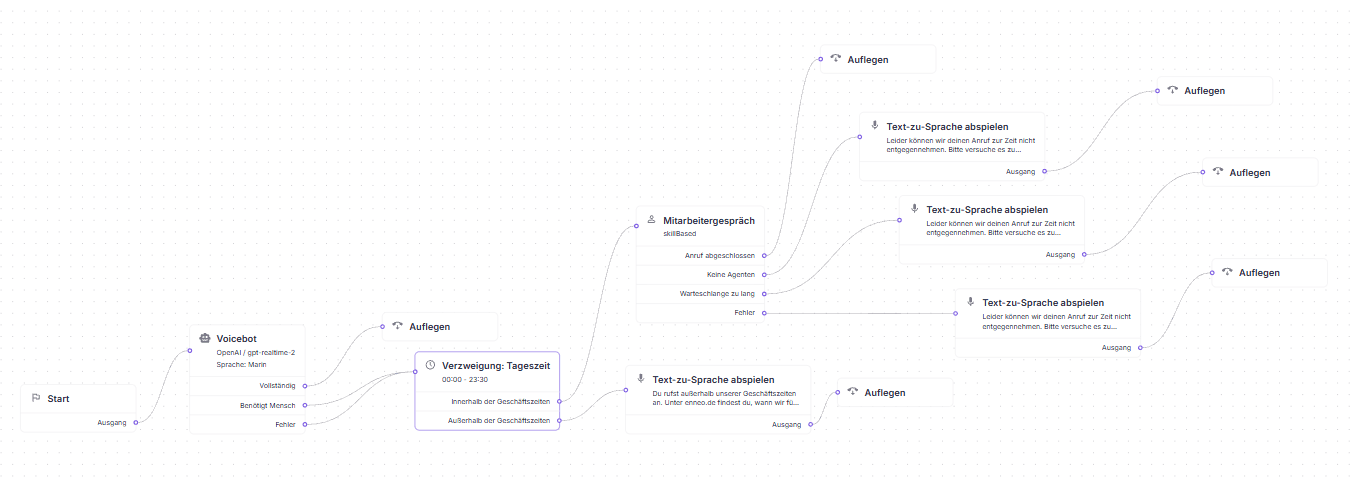
Every flow begins at the Start node. Each node has an input (left) and one or more outputs (right). The outputs define what happens next: you drag a line from an output to the input of the next node. In the image, for example, the voicebot has three outputs – “Complete”, “Needs Human” and “Error” – and each leads to a different node.
How to work in the editor:
- Add nodes: With “Add Node” you select a node and fill in its settings. Clicking an existing node opens its settings for editing.
- Connect: Drag a line from an output to the input of another node.
- Move several nodes: Drag a frame around several nodes with the left mouse button. You can then move the selected nodes together.
- Move the view: hold down the middle or right mouse button.
- Delete: Delete selected nodes or lines with the Delete or Backspace key.
- Undo and Redo: with the buttons in the editor or with Ctrl+Z or Ctrl+Shift+Z (Cmd instead of Ctrl on a Mac).
- Save: Changes only take effect once you save the flow.
The toolbar also has Import and Export (see below) as well as New call flow. After a confirmation prompt, this deletes all nodes and connections.
Note
If the line still runs on the old, linear flow (V1), the editor shows a notice and the “Activate V2” button. The flow saved here only applies once you activate V2 – but then immediately for all incoming calls. Save the flow first; unsaved changes are not applied.
The nodes
| Node | What it does | Key settings | Outputs |
|---|---|---|---|
| Start | Entry point of every flow | – | Out |
| Voicebot | An AI voice agent conducts the conversation | AI agent, greeting, voice, “Allow Hangup”, “Allow Forward to Human”, reprompt after silence | Complete, Needs Human¹, Error |
| Talk to Human | Passes the call to an agent | Mode (skill based, specific agents or specific tags), rejecting the transfer above a waiting time, ringing time, announcements when connecting and in the queue, waiting music, transcription | Call Complete, No Agents, Queue Too Long, Error |
| Forward to Number | Forwards the call to an external number | Phone number, “Transfer the call directly”², “Send forwarding info to the destination” | Connected, No Answer, Busy, Failed |
| Play Text to Speech | Reads a text to the caller | Text, voice | Out |
| Play Audio File | Plays an uploaded audio file | Audio file | Out |
| Branch | Branches by call data, time or SIP headers | one or more conditions (see below) | True, False |
| DTMF Input | Asks the caller to press a key (“Press 1 for …”) | Announcement text, keypad input timeout | Digit 0–9, Hash (#), Timeout |
| Hangup | Ends the call | Reason (optional) | – |
¹ Only visible if “Allow Forward to Human” is switched on. ² If this option is switched on, the phone network connects the caller directly to the destination and enneo leaves the call – recording and transcription then end. If it is switched off, enneo stays in the call.
Each node also has Advanced settings, for example for the voicebot's speech recognition. For most flows, you can keep the default values.
Tip
Older flows may still contain the “Branch: Time of Day” node, as in the image above. It branches by business hours into “In Hours” and “After Hours”. For new flows, use the Branch node with a condition on time of day, day of week or “Inside working hours”.
Examples
Voicebot first, with business hours
This is the flow from the image above:
- After Start, the Voicebot answers the call and tries to resolve the request. If that works, the call ends via “Complete” with Hangup.
- If the caller needs an agent (“Needs Human”) or an error occurs, a Branch checks the business hours.
- Within business hours, Talk to Human follows. If no agent is free, the queue is too long or an error occurs, the caller hears an announcement in each case (Play Text to Speech), and then the call is ended.
- Outside business hours, the caller hears an announcement with the business hours, and then the call is ended.
Keypad menu
A simple keypad menu:
- DTMF Input with the announcement text “For questions about your bill, press 1; to report a move, press 2.”
- Digit 1 leads to Talk to Human in “Specific tags” mode with the tag for billing questions, Digit 2 to Talk to Human with the tag for moves.
- Timeout – the caller did not press a key – leads to Talk to Human for all requests.
Exporting and importing flows
With Export you get the flow as text that you can copy or download. With Import you paste such a text back in. This lets you transfer a flow to another line, for example, or save a version before you make bigger changes. Unsaved changes are not included in the export – save the flow first.
Good to know
- Saved changes apply immediately to new calls on this line. It is best to test bigger changes on a test line first.
- Every output should be connected to a node so that no call ends up nowhere.